Create a LinkedIn Headshot in One Click with AI
Transform any selfie into a professional LinkedIn headshot instantly. No photographer needed - just upload, click, and get studio-quality results.
You know that feeling when someone asks for your LinkedIn profile and you realize your headshot is either missing entirely or it’s that grainy selfie from three years ago? Yeah, I’ve been there. Your LinkedIn headshot is often the first thing recruiters, clients, and colleagues see - and yet most of us treat it like an afterthought.
Here’s the thing: a professional LinkedIn headshot AI tool can fix this in about thirty seconds. No photographer. No scheduling. No awkward small talk while someone adjusts lighting equipment you don’t understand.
Why your LinkedIn headshot actually matters
I used to think headshots were vanity projects. Then I saw the data.
Profiles with professional photos get 21 times more views and 9 times more connection requests. That’s not nothing. But beyond the numbers, your photo signals something deeper: you take your career seriously enough to present yourself professionally.
The problem? Traditional headshots cost anywhere from $200 to $500 and require scheduling around a stranger’s availability. For freelancers, job seekers, or anyone watching their budget, that’s a tough sell.
And even if you shell out the money, you’re stuck with one look forever. Change industries? Get a new hairstyle? Want a less stiff expression? You’re booking another session.
The old options (and why they’re a pain)
Let me count the ways I’ve tried to solve this problem badly:
Hire a photographer - Great results, sure. But you’re looking at hundreds of dollars, calendar Tetris, and the pressure to “get it right” in one session. I once spent forty-five minutes in a studio only to hate every single photo.
Ask a talented friend - Works until your friend flakes, moves away, or expects you to return the favor. Also, mixing friendship and favors is a quick way to make things weird.
Use a selfie and hope nobody notices - We’ve all seen those. The ones where you can tell it was cropped from a group photo at a restaurant. Not exactly screaming “hire me” or “trust me with your project.”
Generic AI headshot apps - Some are decent, but many give you that uncanny valley look. Plastic skin, weird eyes, the sense that something’s off but you can’t quite place it. Plus they often require uploading twenty photos and waiting hours for results.
What you’ll get with the LinkedIn Headshot blueprint
This blueprint transforms any photo of you - even a casual selfie - into a professional LinkedIn headshot in one click.
The AI does three key things:
-
Preserves your identity - Same face, same features, same you. No generic replacement or plastic skin.
-
Adds professional styling - Business attire, proper lighting, clean background. You look like you hired a pro.
-
Frames it correctly - Square crop, centered composition, LinkedIn-ready dimensions.
Here’s the best part: you can run it multiple times with different source photos until you get exactly the expression and vibe you want. No pressure. No per-attempt cost negotiation.
Before and after examples
Hiking selfie to studio headshot
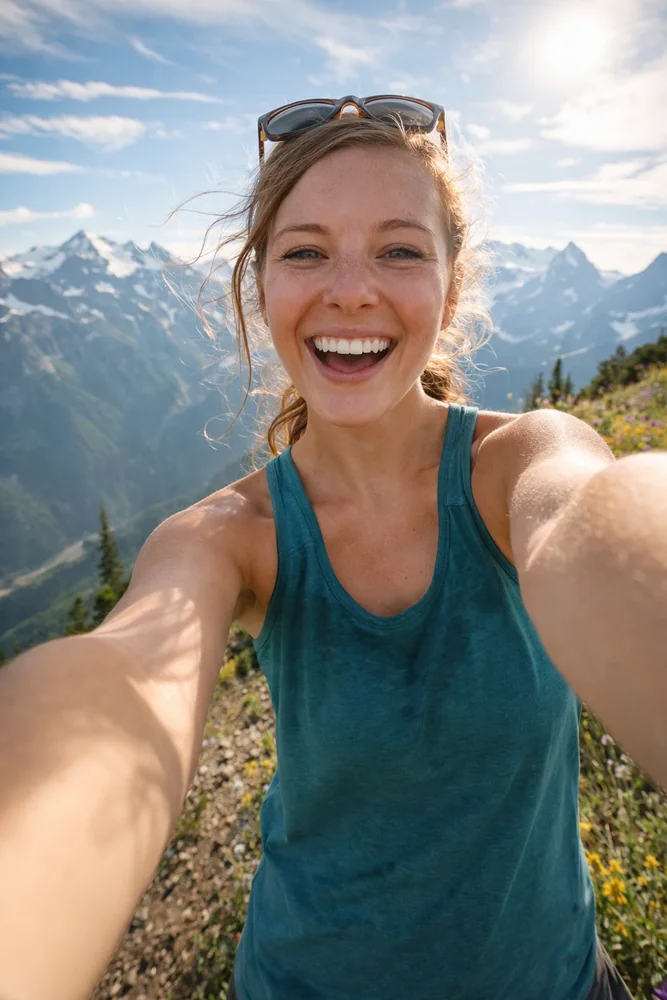
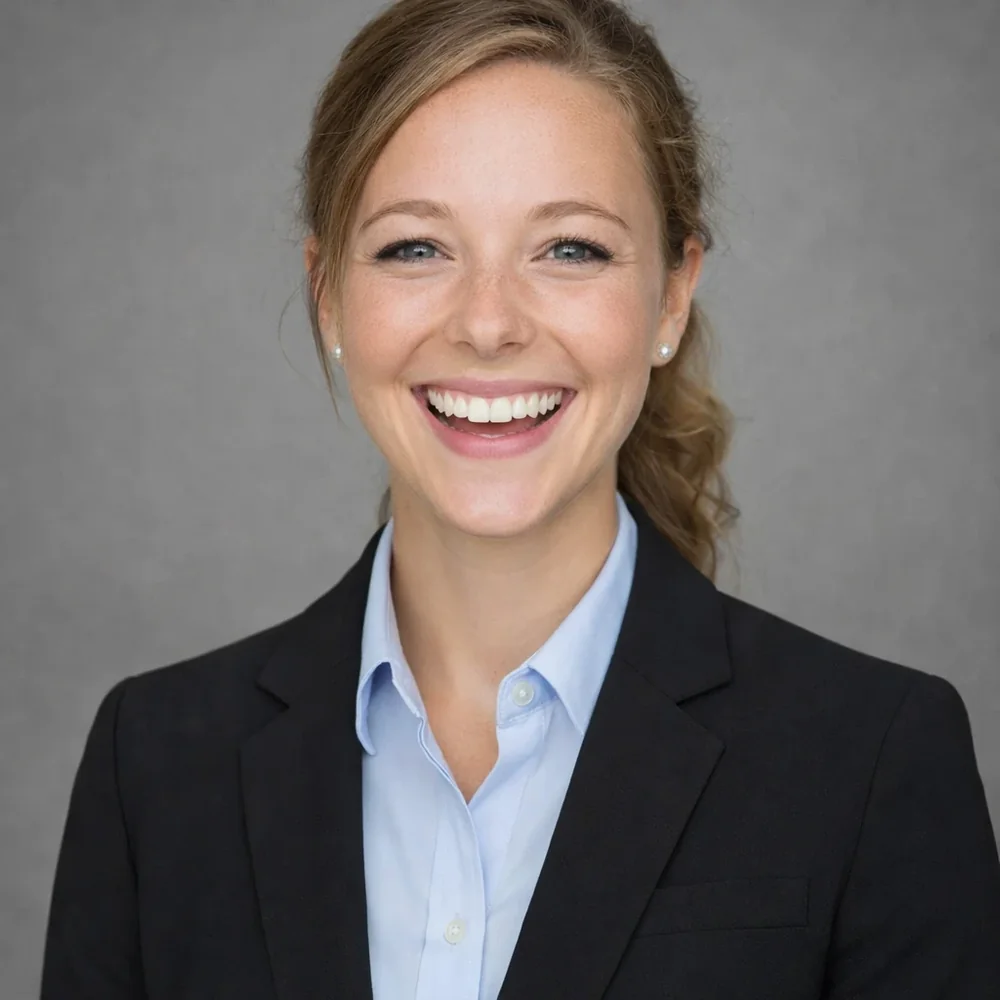
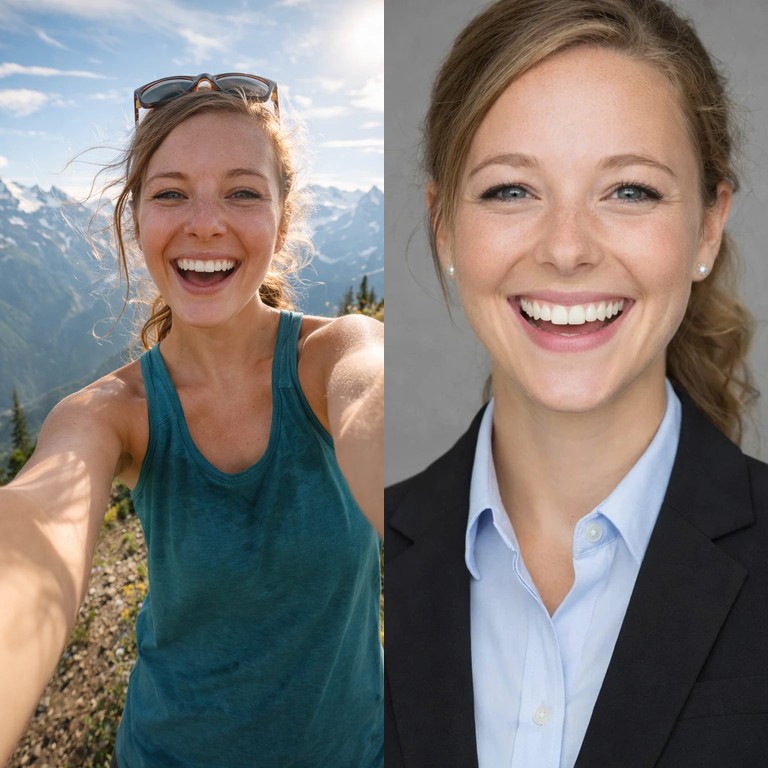
That example above started as a casual photo taken while hiking. The AI headshot from selfie transformation kept the person’s identity exactly intact while completely reimagining the context - professional attire, clean background, proper lighting.
What makes this different from other AI headshot tools
I’ve tested a bunch of these tools. Most fall into two camps: either they’re so aggressive that you end up looking like a different person, or they’re so subtle that you might as well have just cropped your original photo.
The LinkedIn Headshot blueprint hits a sweet spot. It uses the openai/gpt-image-1.5 model with a carefully tuned prompt designed specifically for professional headshots. The AI understands context - it doesn’t just slap a suit on you, it considers the whole composition.
Also, it validates your input first. If you upload a photo with no face or multiple people, it tells you upfront rather than giving you weird results. Small detail, but it saves frustration.
When this makes sense
This isn’t about replacing professional photographers for every situation. If you’re a C-suite executive preparing for a major press tour, hire a pro. If you need photos for your entire 200-person company with consistent branding, book a studio day.
But for most of us? An AI professional headshot is exactly what we need:
- Updating your LinkedIn after a career change
- Creating consistent headshots for your startup’s team page
- Getting a professional photo for speaking engagements or guest posts
- Having a polished image ready for conference submissions
- Refreshing your look without the expense and time of a photoshoot
The math is simple. You probably have a decent photo of yourself on your phone right now. In about a minute, it could be a professional LinkedIn headshot.
Try ImageFix free - Upload any photo and generate your LinkedIn headshot instantly. No photographer, no scheduling, no awkward posing. Just results.
Step-by-step: How to create a LinkedIn headshot in one click
Here’s exactly how I transform any selfie into a professional headshot using ImageFix. The whole process takes about 30 seconds.
Step 1: Upload your photo
- Head to ImageFix and sign in (or create a free account)
- Click the upload button and select your photo
- You can use any photo that shows your face clearly - a casual selfie works fine
You don’t need a professional photo to start. I’ve used hiking selfies, outdoor snapshots, and even cropped group photos. The AI handles the transformation.
Step 2: Select your image in the editor
- After uploading, you’ll land on the editor page
- Click on the image you want to transform
- A blue border appears around your selected image
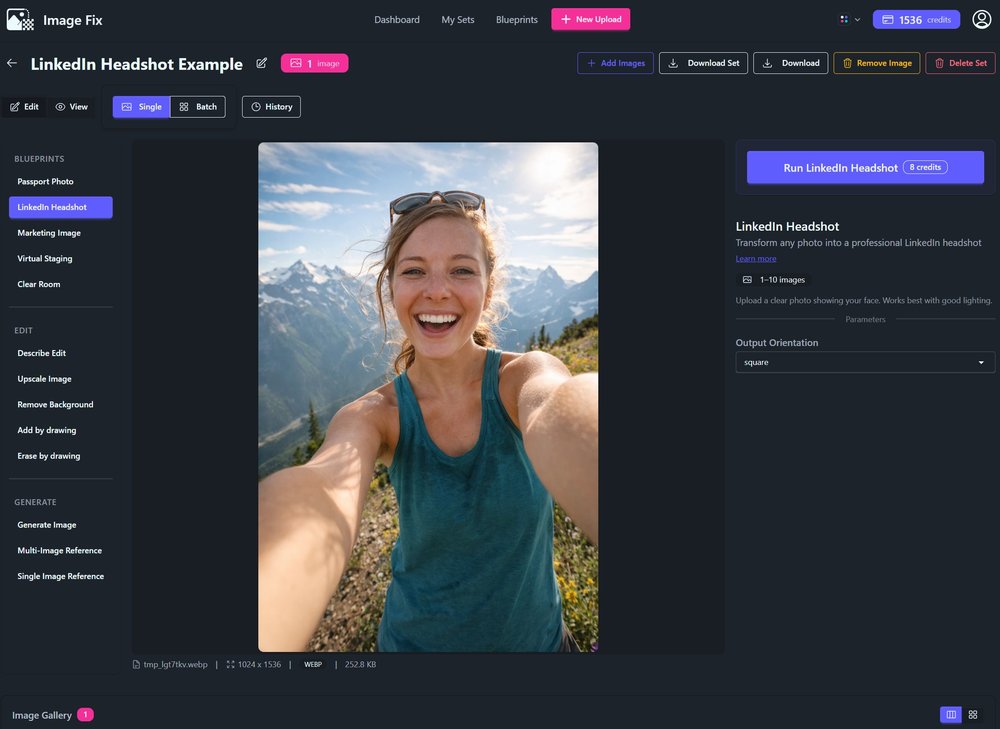
Step 3: Choose the LinkedIn Headshot blueprint
- Look at the left sidebar under “Blueprints”
- Click on “LinkedIn Headshot”
- You’ll see a few options appear on the right side
The blueprint automatically handles lighting, background, and professional styling. You don’t need to adjust anything manually unless you want to.
Step 4: Click Generate
- On the right sidebar, click the “Generate” button
- Wait about 15-20 seconds for processing
- Your professional headshot appears next to your original
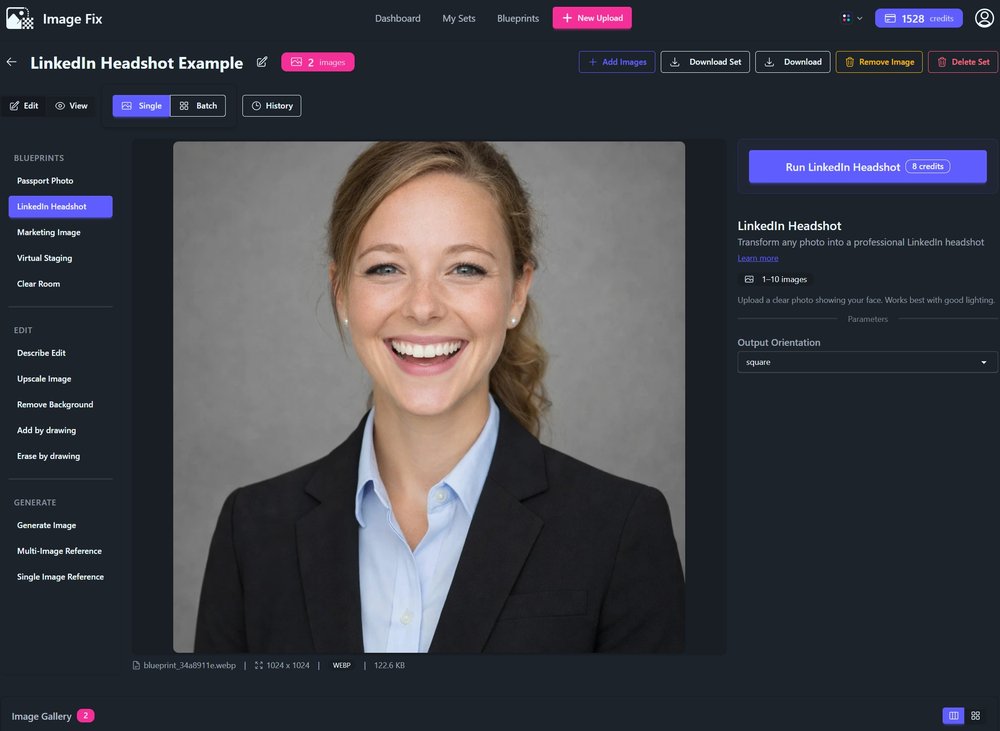
That’s it. One click and you have a polished LinkedIn headshot. The AI keeps your exact facial features while dressing you in professional attire and placing you against a clean background.
Tips for better results
- Use good lighting in your source photo. A well-lit selfie produces better results than a dark one. Natural daylight works great.
- Face the camera directly. The AI works best when your face is clearly visible and centered in the frame.
- Pick the right aspect ratio. Square is perfect for LinkedIn, but you can also choose portrait or landscape if you need headshots for other platforms.
Why ImageFix for LinkedIn headshots
- One-click transformation. No manual editing, no complex settings, no design skills required.
- Your face stays recognizable. The AI preserves your exact features - you still look like you, just more polished.
- Free to start. Get 50 credits when you sign up, which is enough for multiple headshots.
Get started
Ready to upgrade your LinkedIn profile? Create your free account and get 50 credits to start generating professional headshots today.