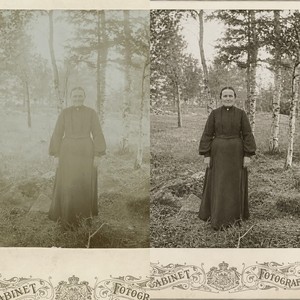
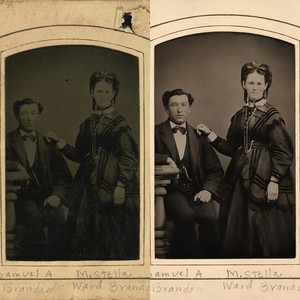
How to Colorize a Black and White Photo: What to Expect
How to colorize a black and white photo: clean up the scan first, choose between AI and hand painting, and learn why the colors are educated guesses.
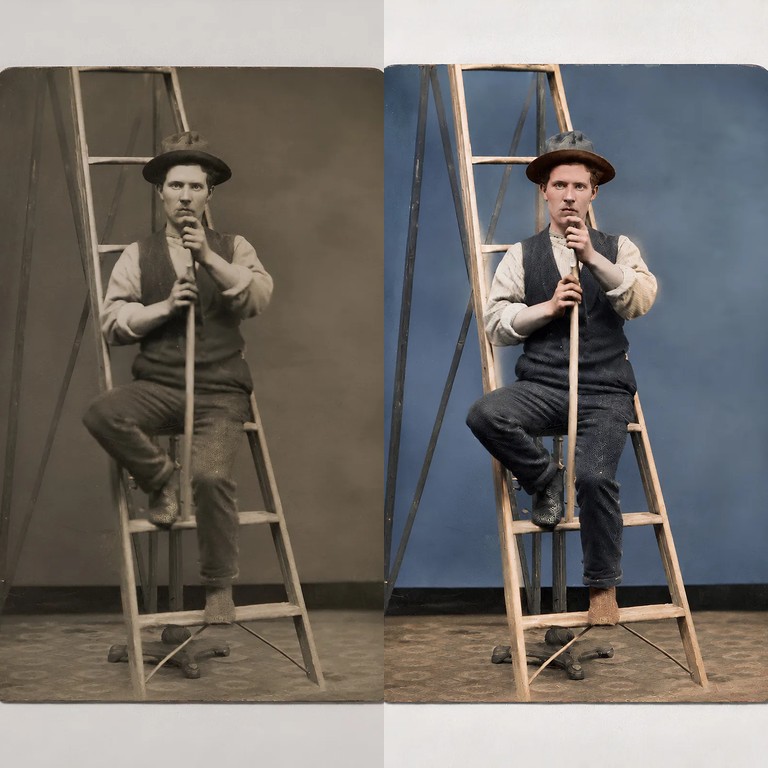
You can colorize a black and white photo in a few minutes now, and the results are often convincing. What the software gives you is a well-informed guess, though, not a record of the real colors. This guide explains how colorization works, how to get a better result from your own photo, and what to expect from the colors, so the finished picture is something you’re happy to share.
What colorizing a black and white photo actually does
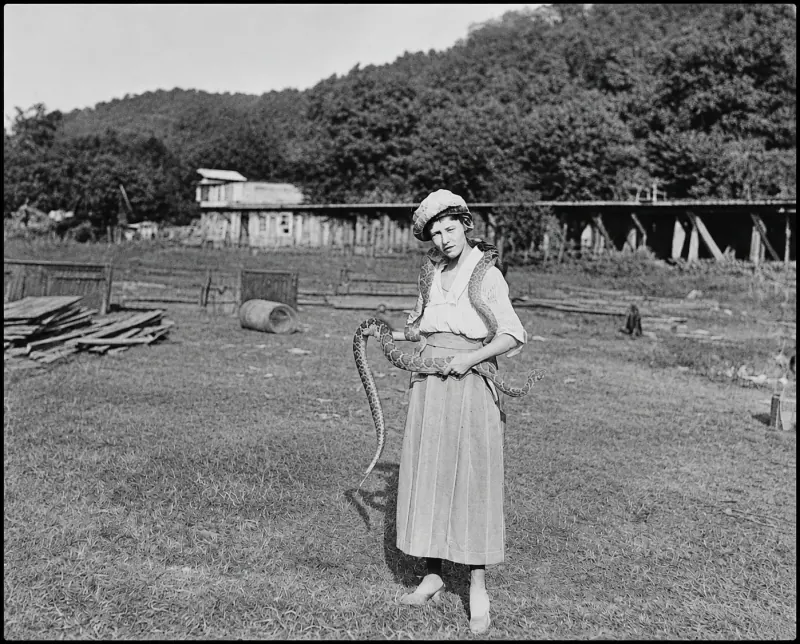
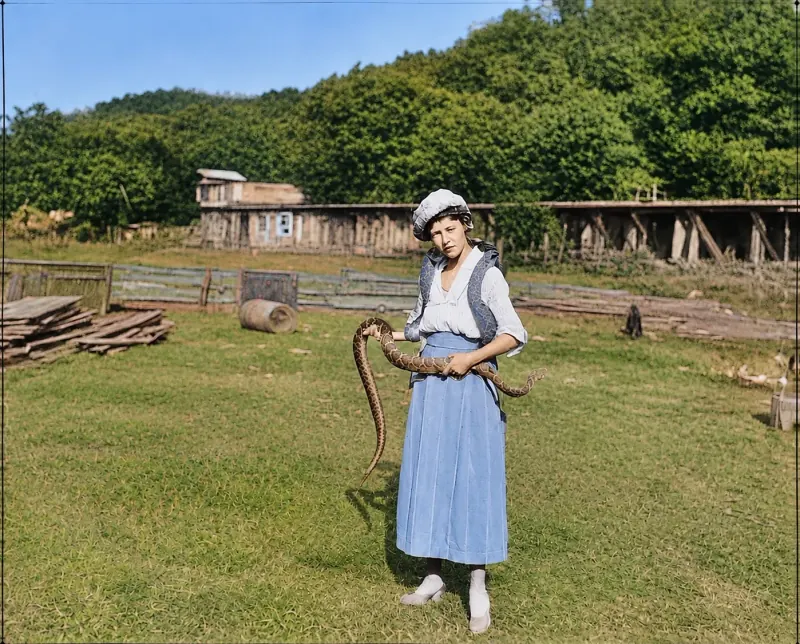
A black and white photo records brightness at each point and nothing about hue. Colorization adds the hue back. An AI model has learned from millions of color photos what things tend to look like: grass is green, skies are blue, skin has warm tones, brick is red-brown. It looks at your picture, works out what is in it and paints those likely colors on top of the original brightness.
That has one useful consequence. The brightness and detail of your photo stay the same, so a colorized version looks like your photo, just in color. And it has one limit that matters more: where the model can’t tell what something is, it picks the most common color.
Why the colors are a guess
Think about a grey jacket in a 1940s portrait. It could have been brown, green, navy or dark red. Many of those render to nearly the same grey in the print. Early film also reacted to colors unevenly. Older emulsions were more sensitive to blue than to red, so red often shows up much darker than it looked in life, and a red dress and a dark grey one can be hard to tell apart.
So skin, sky, grass and wood usually come out right, because the model has seen them thousands of times. Clothing, cars, painted doors and flowers are where it is most likely to be wrong. If you know the real color of something, you can tell the colorization was off and fix it. If you don’t, the safest view is that the colors are plausible, not documented.
Before you colorize: clean the photo first
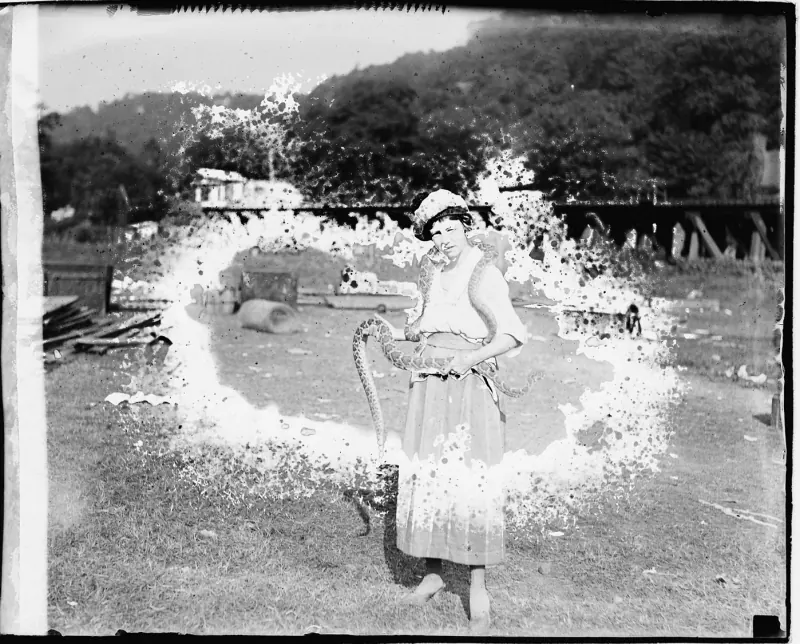
Colorization works much better on a clean picture. A black and white photo with scratches, stains or fading gives the model confusing information, and the damage can pick up color of its own. For example, a stain on a white shirt may come out as a green blotch.
So restore first. Scan the print at 600 DPI for a standard 4x6, or 1200 DPI for a wallet-size one. Use a flatbed scanner, hold the print by its edges and save a lossless TIFF or PNG master. Then repair damage and bring back contrast. We cover that in our guides to restoring old faded photos and to fixing a torn or scratched photo.
Sepia-toned and cabinet card photos count as black and white here. They are monochrome with a tint, and models handle them well.
Ways to colorize a black and white photo
By hand. In Photoshop or GIMP, you paint color onto separate layers set to the Color blend mode, one layer for skin, one for clothing, and so on. You choose every color, so it is the most accurate method if you know the real colors. It is also slow. Expect several hours per photo.
With a one-click tool. Photoshop has a Colorize neural filter, Photoshop Elements has a Colorize Photo command and several free sites offer a quick colorizer. These are quick and fine for casual use. Quality and control vary, and many ask for an account.
With ImageFix. Upload a black and white photo and the pipeline restores it and makes a colorized copy at no extra cost. You see a free watermarked preview of both before you pay. If you like it, it is $5 flat for the downloads. If the photo already has color, we don’t colorize it.
How to get a better colorized black and white photo
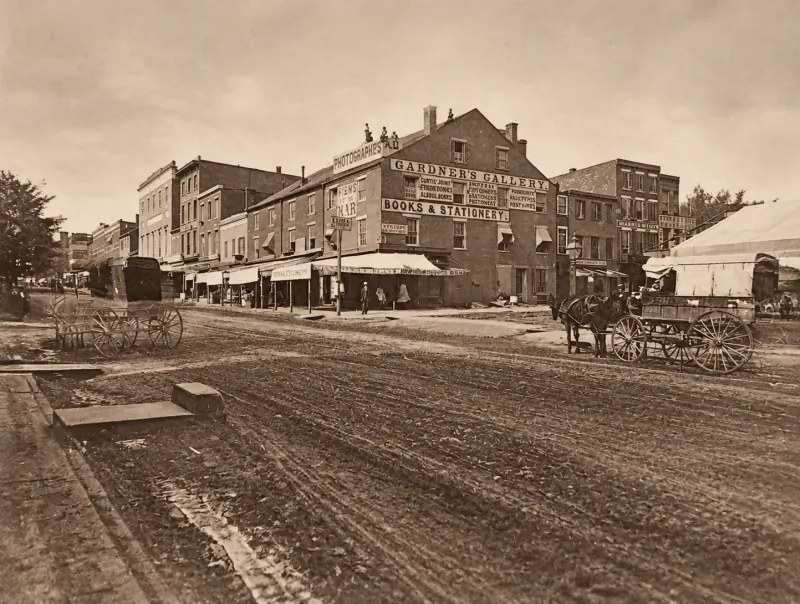
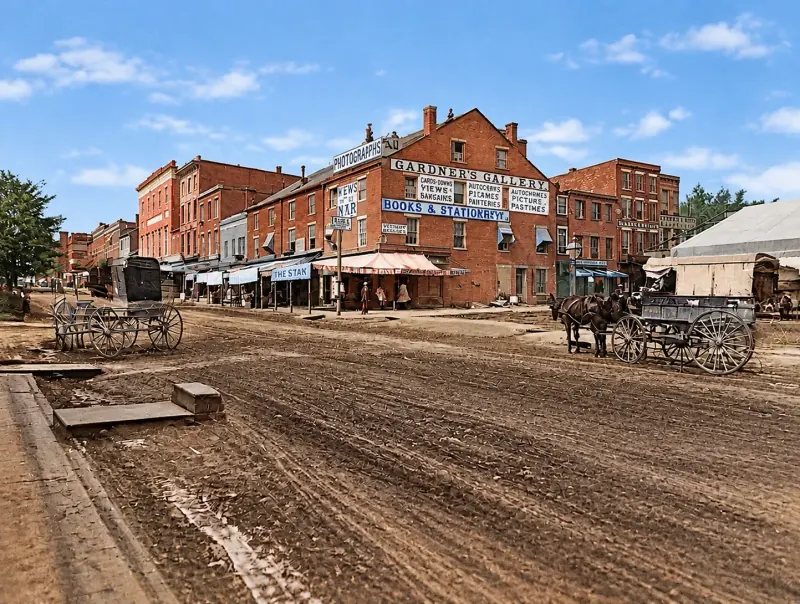
You can’t tell an AI which color a coat was, but you can still improve the odds.
- Start with a good scan. More detail gives the model more to recognize. A sharp 600 DPI scan beats a blurry phone shot.
- Crop to the picture. Borders and mounts distract the model. Cropping can help, but keep the original uncropped file.
- Check the result against what you know. Ask a relative about a uniform, a dress or a car. If the colorized coat is the wrong color, you’ll know the colors are the model’s choice, not a fact.
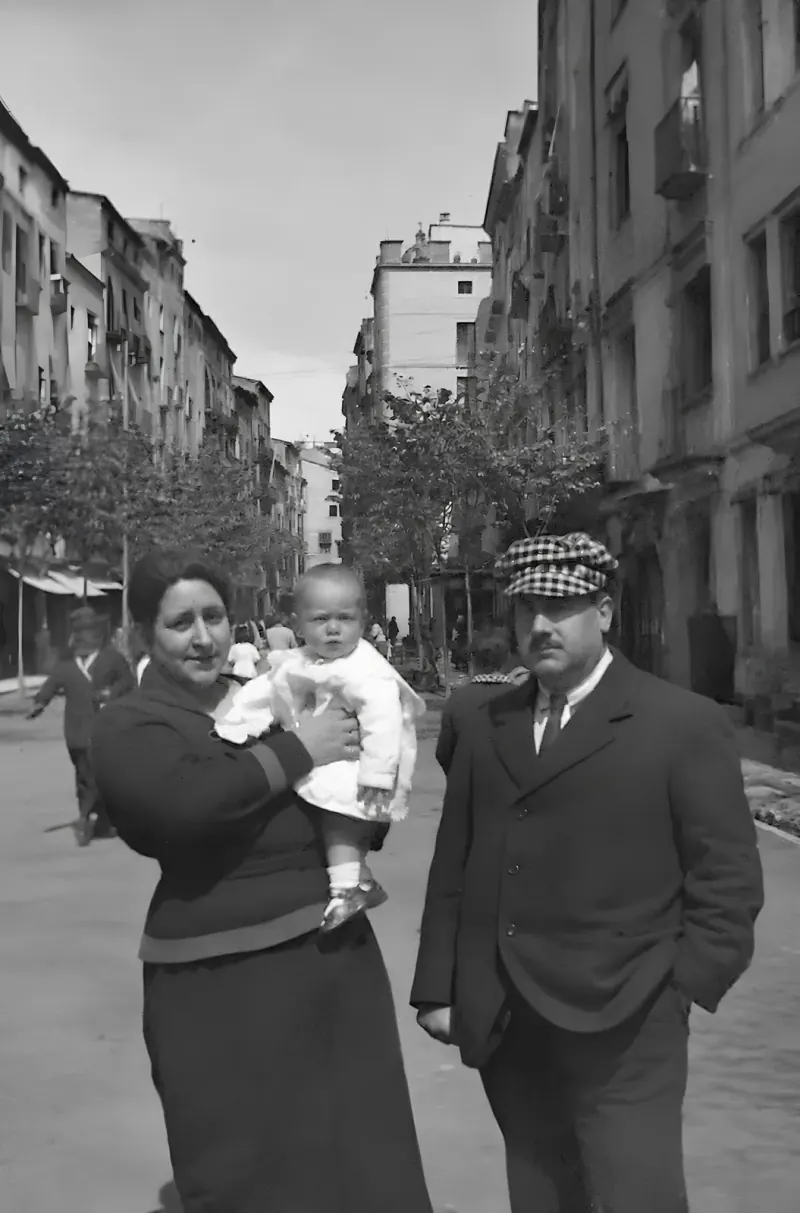
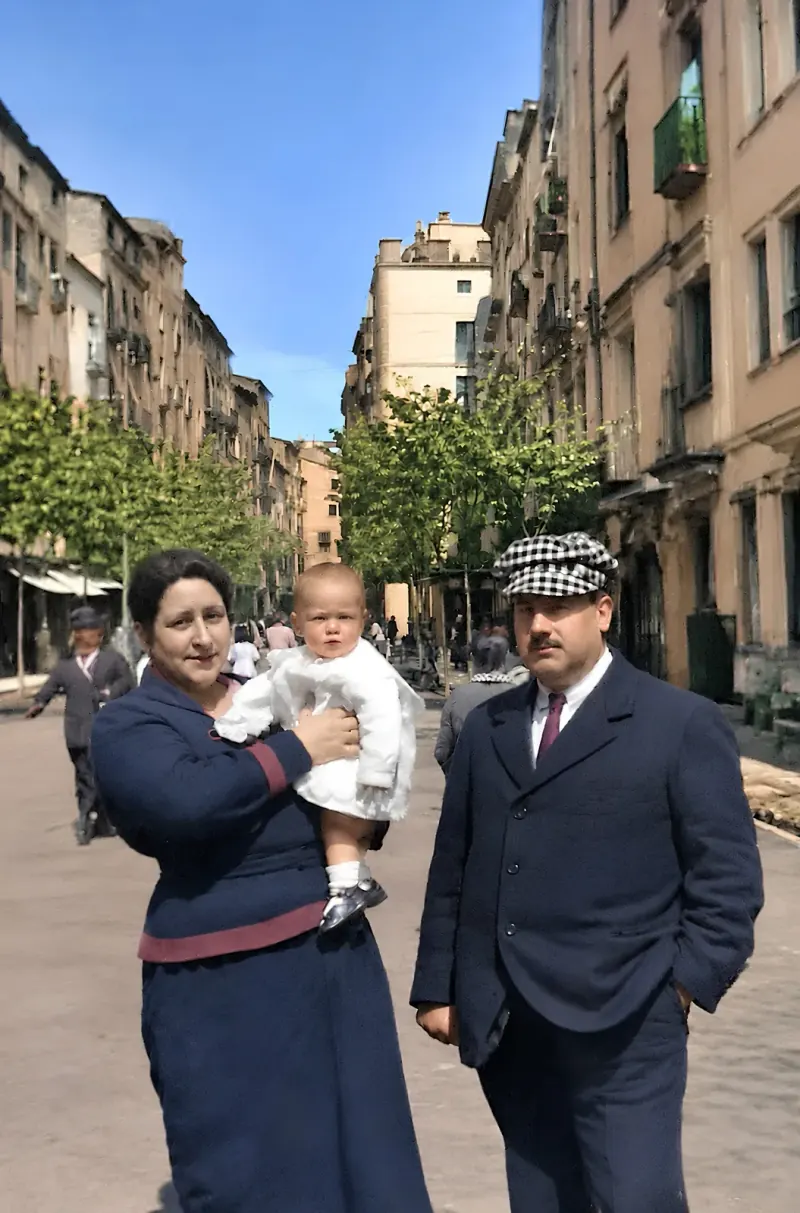
- Keep both versions. The restored black and white copy is the faithful one. The colorized copy is the interpretation. Both are worth keeping.
What to do with the colorized copy
Print it, share it, but keep the black and white version as the master. A colorized black and white photo looks best at a moderate size, because enlarging it a lot magnifies the model’s guesses along with the grain. For a family tree or a shared album, put the restored black and white copy first and the colorized one beside it. Relatives often spot a wrong color right away, and then you can correct it by hand in any editor, which takes minutes for a single garment.
If you plan to print, ask the print shop for a matte or lustre finish. Gloss shows every scan flaw, and a restored 1920s photo looks more at home on a softer paper.
Where colorization goes wrong
A few patterns are worth knowing, so they don’t catch you off guard.
Faces can come out a little uniform in tone, especially in small or soft photos. Hair color is often a good guess for dark hair and a poor one for red or blonde. Patterned clothing, signs and anything that was painted tend to get a flat, plausible color. And people of mixed or varied skin tones are not always rendered as the person really looked, so treat skin tone as something to check against family memory.
None of that makes a colorized photo worthless. It makes it an interpretation, and it is best presented that way. If you share it online or in a family tree, a short note such as “colorized from the original black and white” is honest and costs nothing.
FAQ
Can I try to colorize a black and white photo for free?
Yes, as a preview. Several free tools exist, and every black and white photo on ImageFix gets a free colorized copy in the watermarked preview. Downloading the clean files costs the flat $5, and you pay only if you like the result.
How accurate are the colors when you colorize a black and white photo?
They are plausible, not exact. Skin, sky, grass and trees are usually close. Clothing, cars and painted objects are guesses unless you know the real colors and correct them.
Should I restore a photo before I colorize it?
Yes. Scratches, stains and fading confuse the model, and the damage can pick up odd colors. ImageFix restores the photo first and colorizes the restored version.
Can you colorize a photo that already has color?
There is no point, so we don’t. A color photo that has faded needs its colors restored, not added. See our guide to restoring faded photos.
Try it on your own photo
Upload a black and white photo to ImageFix and look at the restored and colorized previews. They’re free, and you pay the flat $5 only if you like them.