How to Make Coffee Bag Product Photos Look Professional
Create professional coffee bag product photos with AI. Turn kitchen table snapshots into cafe-ready marketing images for your online store.
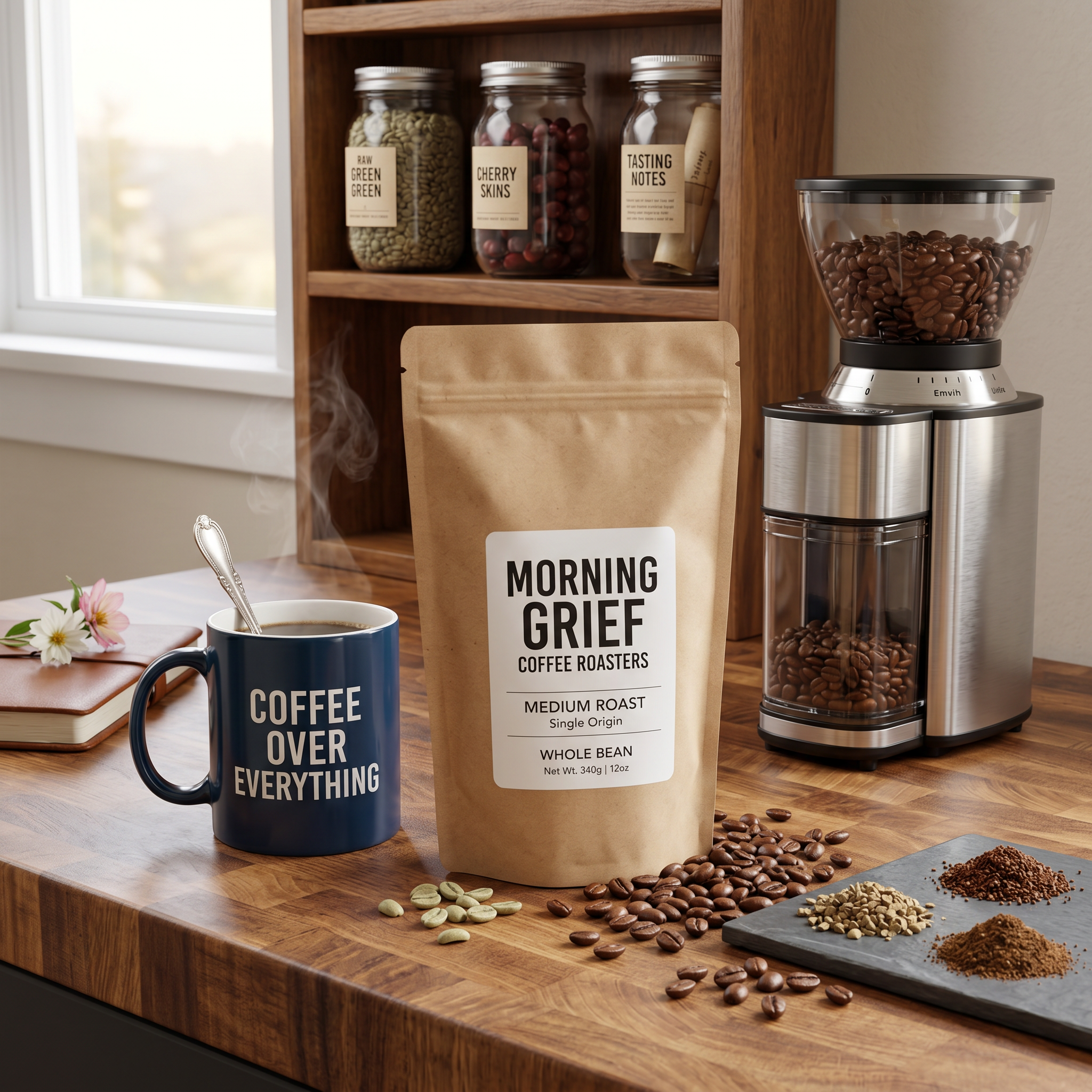
If you roast coffee at home, sell from a farmers market, or run a small Shopify store, your product photography needs to do the heavy lifting. Buyers can’t smell the roast or taste the cup. They judge your coffee by the bag, the label, the lighting, and whether the photo makes them feel like they’re holding a cup of something good.
A phone photo of a coffee bag on the kitchen table often doesn’t cut it. The clutter, weak lighting, and random objects nearby make a great product look like a casual snapshot instead of a brand people want to buy from.
For this example, I used the ImageFix Marketing Image blueprint to turn one kitchen-table coffee bag photo into a polished, cafe-ready product image. The goal is not to invent a different bag. The goal is to keep the same coffee bag and make the photo feel like it belongs on an online store or a social media post.
Why coffee bag product photos matter
Coffee is a crowded market. Whether you’re selling on Shopify, Etsy, Amazon, or your own site, your product image is the first thing a buyer sees. A sharp label, warm lighting, and a composition that feels like a real cafe counter help your brand stand out against stock-photo-looking competitors.
That matters even more for small roasters. You might have a thoughtful roast profile, a clean label design, and a story worth telling. But if every product image looks like it was shot on a different surface with different lighting, the store starts to feel inconsistent.
Square 1:1 is a safe default for coffee product photos. It works for product cards, social posts, email campaigns, and most ecommerce layouts without awkward cropping. Shopify’s product media docs support common image formats, and a square image gives you flexibility across placements.
The old way: coffee product photography setup
Traditional coffee product photography sounds simple until you try it:
- A clean surface that feels warm, not sterile
- Natural light or a controlled setup without harsh shadows
- Props like coffee beans, a mug, or a grinder that fit the brand
- An angle that keeps the label readable and the bag looking full
- Editing time for color, dust, glare, and consistency
If you’re shooting one hero image for your flagship roast, that might be worth the effort. If you’re trying to launch a store with five single-origin bags, three blends, and a seasonal limited edition, it gets slow quickly.
AI product photography helps here because it can do the staged-photo part after you have a usable product reference. You still need a clear photo of the actual bag, but you do not need a cafe counter, matching props, or a lighting setup in your kitchen.
What I made
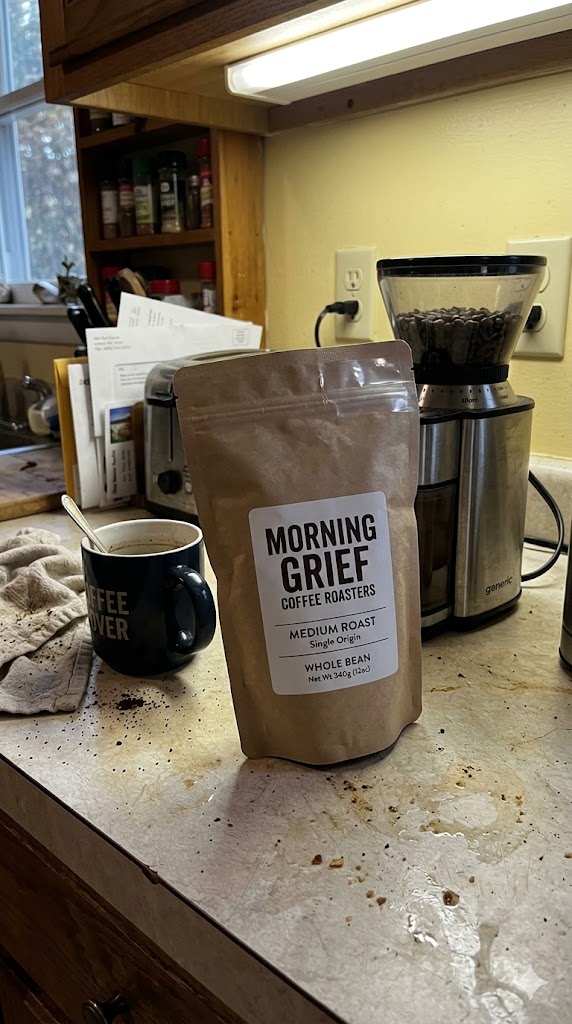
I started with a phone photo of a coffee bag on a kitchen table near a mug and a grinder. The product is readable and centered, but the scene around it is not store-ready.
For the final coffee marketing image, I used these Marketing Image settings:
- Include People: No
- Style: Kitchen & Food
- Aspect Ratio: Square (1:1)
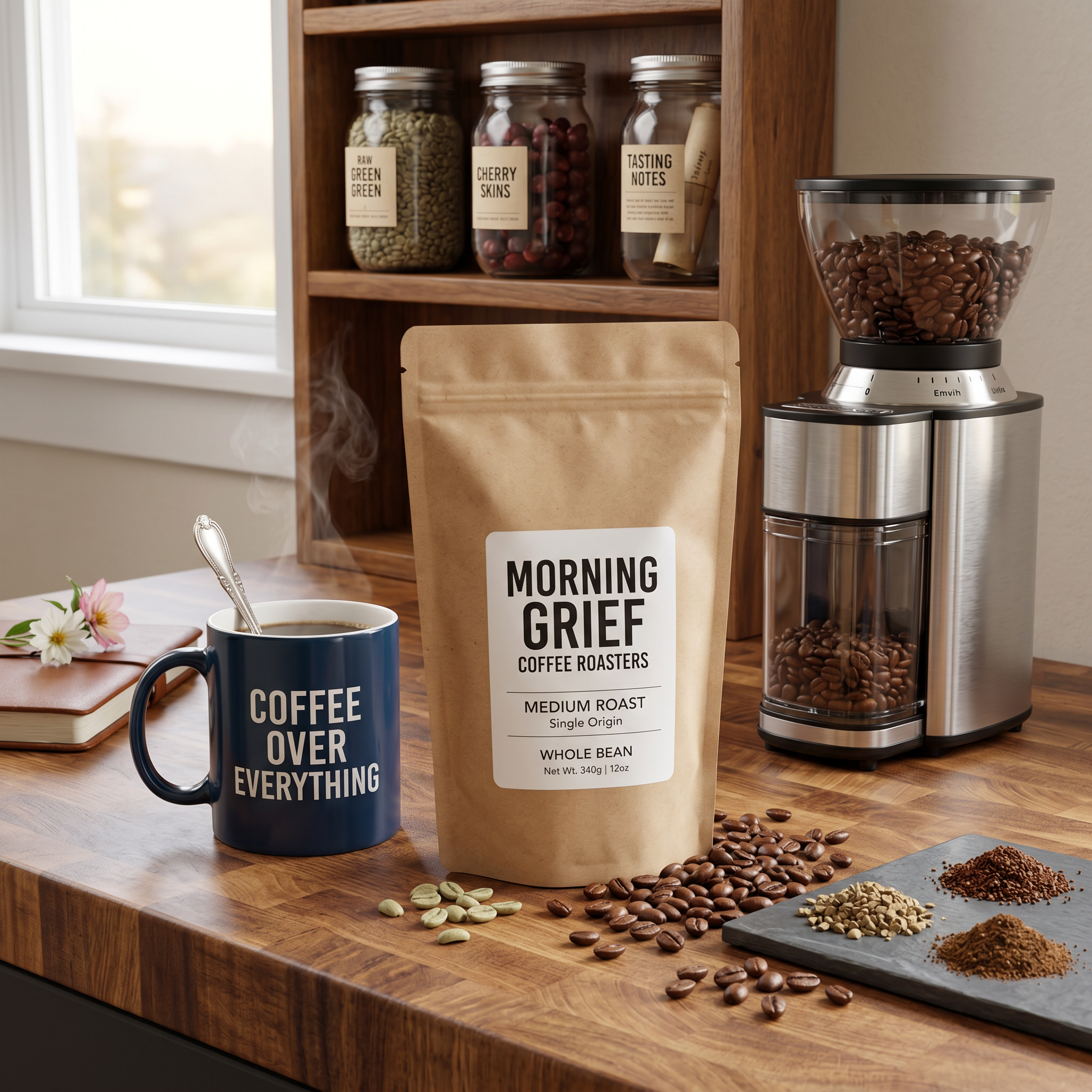
The result keeps the same coffee bag and label direction, then stages it on a warm kitchen counter or cafe-style surface with coffee beans, a mug, natural morning light, and a strong ecommerce composition.
Kitchen table photo
Cafe-ready product photo
What changed in the final image
The biggest win is focus. In the original, your eye has to filter out the clutter, weak lighting, and random objects before it lands on the coffee bag. In the final image, the product owns the frame.
The second win is warmth. Kitchen & Food style creates a cozy, inviting scene that feels like a real cafe or a morning kitchen counter. Coffee beans, a mug, and natural light cues all say “coffee” without turning the scene into a busy still life.
The third win is consistency. Once you have a product-photo style that fits your coffee brand, you can run the same bag again in other looks:
- Kitchen & Food for product pages and social posts
- Clean Studio for a tighter catalog-style image
- Rustic / Handmade for a small-batch, artisanal feel
- Modern Minimalist for a cleaner, more premium brand look
That gives you more than one usable image from the same source photo.
Input photo tips for coffee bags
You do not need a perfect studio shot before using ImageFix, but the input photo still matters.
Keep the label facing the camera. AI can improve the scene, but it still needs a good read on the product. Turn the bag until the front label is centered and readable.
Avoid glare on the packaging. Glossy coffee bags can catch kitchen lights and window reflections. Move the bag slightly or turn off harsh overhead lighting if the label is blown out.
Get the bag in focus. The background can be messy. The product should not be blurry.
Photograph the bag upright. A standing bag looks fuller and more professional than a bag lying on its side. If the bag won’t stand on its own, prop it against something neutral.
Shoot one clean reference for each roast. If your brand has different origins, blends, or roast levels, photograph each bag separately so the generated product photos stay accurate.
When to use Kitchen & Food versus other styles
For coffee, I like Kitchen & Food when the product needs to feel warm and inviting: single-origin roasts, house blends, subscription bags, and anything where the brand wants to feel approachable. It is good for product pages, Instagram posts, email campaigns, and launch graphics.
Clean Studio is better when the store needs a quieter catalog feel. If you want every product card to look consistent across a collection page, run a second version in Clean Studio and compare it against the Kitchen & Food version.
Rustic / Handmade works well for small-batch roasters, farmers market brands, and coffee sold at craft events. It creates a warmer, more artisanal feel that fits the handmade coffee aesthetic.
The useful part is that you do not have to decide once. Upload the same coffee bag photo, rerun the Marketing Image blueprint with a different style or aspect ratio, and build a small set of images for different channels.
Step-by-step: Create coffee bag product photos
Here is the exact workflow I used to turn the kitchen-table photo into a cafe-ready coffee product image.
Step 1: Upload your coffee bag photo
- Log into ImageFix.
- Upload the product photo you want to improve.
- Open the image in the editor after it finishes uploading.
For this example, I used a phone photo of a coffee bag on a kitchen table. The bag is clear enough to identify, but the background is doing the product no favors.
Step 2: Select the Marketing Image blueprint
- In the left sidebar, choose Marketing Image.
- Check that the coffee bag photo is selected on the canvas.
- Look at the options panel on the right side of the editor.
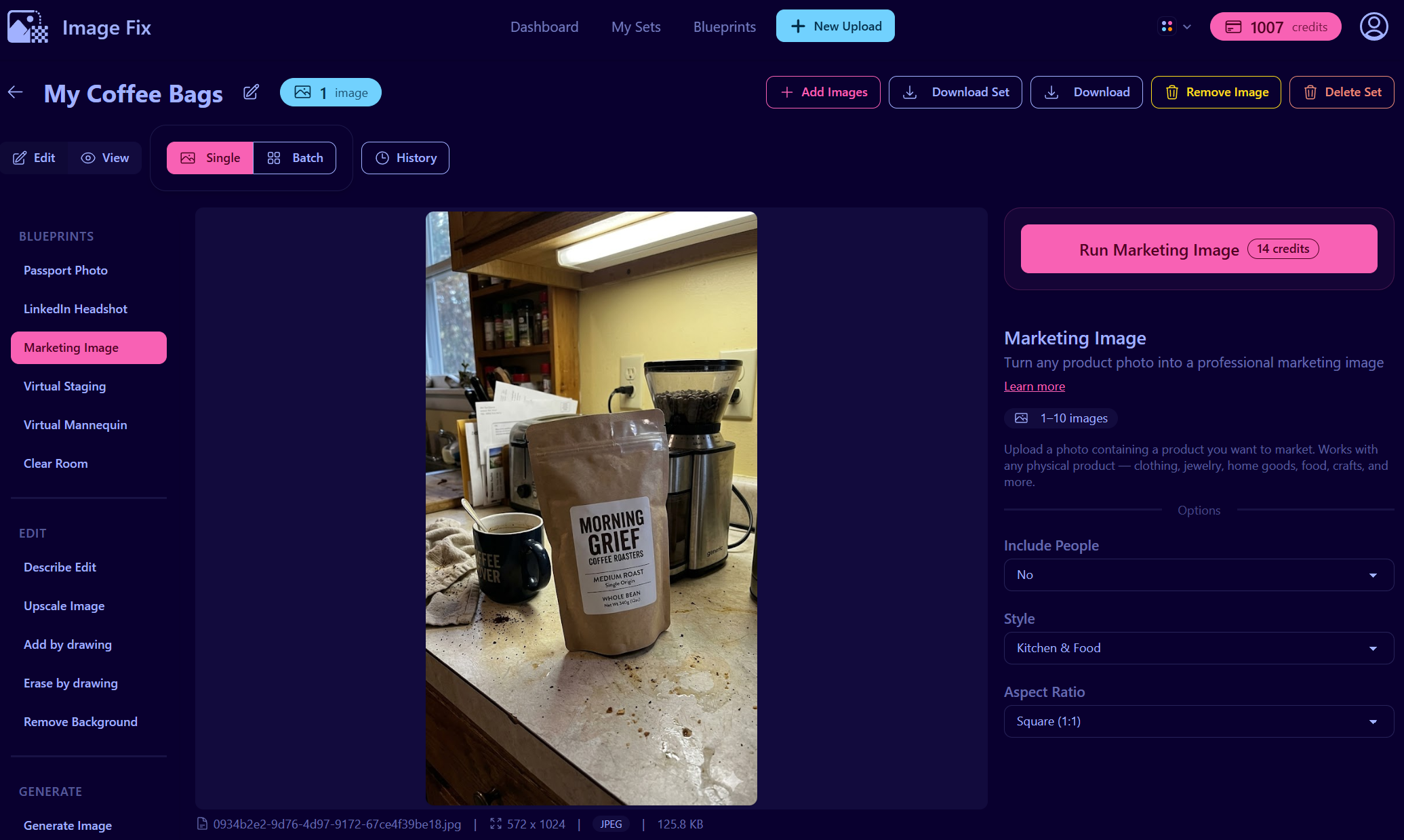
The Marketing Image blueprint is built for physical products: coffee, skincare, candles, jewelry, food packaging, handmade goods, apparel, and similar ecommerce items.
Step 3: Set Include People to No
- Find the Include People dropdown.
- Choose No for a product-only coffee image.
- Use Yes only when a person is already part of the product photo and you want them kept in the scene.
This example is just the coffee bag, so No is the right choice. That keeps the result focused on the product, not a model or hand shot.
Step 4: Choose Kitchen & Food
- Open the Style dropdown.
- Select Kitchen & Food.
- Use this style when you want a warm, inviting food-and-beverage brand look.
Kitchen & Food works well for coffee bags, tea packaging, snack boxes, and anything where the product benefits from a cozy, food-adjacent scene. For this coffee bag, it created a warm kitchen counter, coffee beans, a mug, and natural morning light.
Step 5: Choose Square 1:1
- Open the Aspect Ratio dropdown.
- Select Square (1:1).
- Use this when you want a versatile ecommerce-friendly product image.
A 1:1 crop gives the coffee bag room to breathe while still feeling useful for product cards, social posts, and email campaigns. It also leaves space around the product, which helps the final image feel less cramped.
Step 6: Run the blueprint
- Click Run Marketing Image.
- Wait for ImageFix to generate the new image.
- Review the result on the canvas.
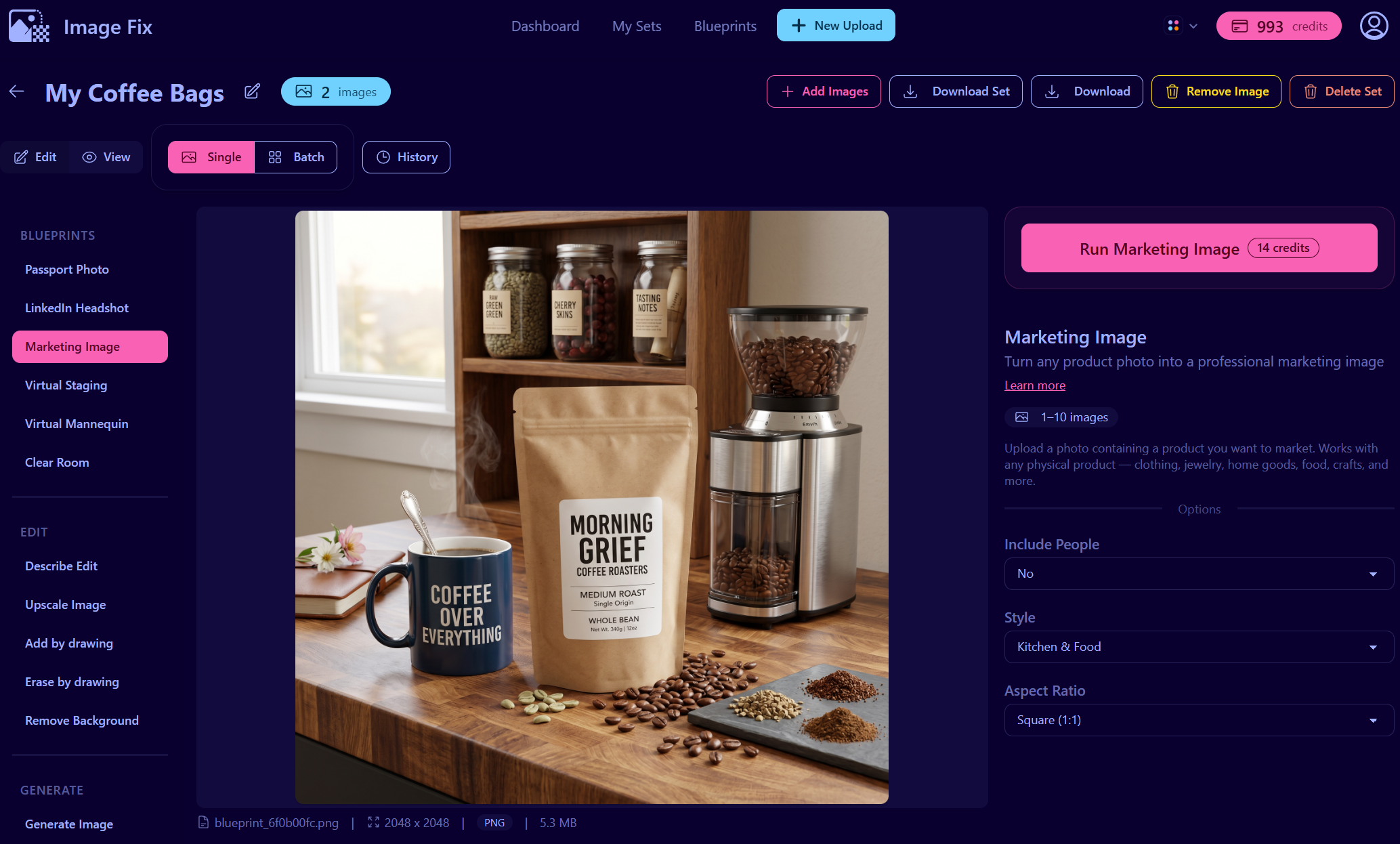
The final image keeps the same coffee bag, removes the kitchen-table distractions, and places the product in a warm, cafe-ready composition that feels much more appropriate for an online store.
Tips for better coffee bag product photos
Shoot the bag straight-on first. Angled shots can look nice, but a straight, readable label gives the AI a stronger product reference.
Clean the bag before photographing it. Fingerprints, dust, and creases can show up on glossy packaging.
Use a second pass for catalog consistency. After you create the Kitchen & Food version, run the same photo again with Clean Studio if you want a quieter collection-page image.
Keep testing aspect ratios. Square 1:1 worked well here, but Instagram Post 4:5 and Pinterest Pin 2:3 can be useful for different social placements.
Why ImageFix
- It starts from your real product. You do not need to prompt a fake coffee bag from scratch.
- The options are simple. Pick people, style, and aspect ratio, then run the blueprint.
- It fits seller workflows. You can create coffee marketing images for product cards, social posts, emails, and launch graphics from the same source photo.
Ready to upgrade your coffee product photos?
Try the Marketing Image blueprint with one of your own product photos, or create a free ImageFix account and get 50 free credits to test it on a few coffee bag images.