How to Create Skincare Product Photos for Shopify
Create polished skincare product photography for Shopify with AI. Turn bathroom-counter shots into premium beauty product images fast.
If you’re selling creams, serums, cleansers, or balms online, skincare product photography does a lot of trust-building before anyone reads your ingredient list. A customer can’t feel the texture or test the scent. They judge the product by the jar, the label, the light, and the consistency of the whole Shopify collection page.
That is where a casual phone photo usually falls apart. The product might be great, but the bathroom counter, toothbrushes, towel, sink, warm overhead light, and clutter around it make the brand feel less premium than it really is.
For this example, I used the ImageFix Marketing Image blueprint to turn one bathroom-counter skincare photo into a polished product-card image. The goal is not to fake a different product. The goal is to keep the same jar and make the photo feel like it belongs on a skincare storefront.
Why skincare product photos matter on Shopify
Skincare buyers are looking for signals of care. A sharp label, clean lighting, tidy composition, and consistent product cards all help the store feel more trustworthy.
That matters even more for indie skincare brands. You might be making a thoughtful formula in small batches, but if every product image looks like it was shot in a different room, the collection page starts to feel patched together.
Shopify themes can display product media in different ways, so I don’t treat one aspect ratio as a universal rule. Shopify’s product media docs support high-resolution product images and common image formats, but your theme still controls how those images appear in product cards, galleries, and collection grids. For this post, I chose a tall Product Card 3:4 image because it gives a skincare jar room to breathe while still feeling useful for ecommerce layouts.
The old way: beauty product photography setup
Traditional beauty product photography can look simple from the outside, but it takes real setup:
- A clean surface or backdrop
- Soft light or a controlled window setup
- Reflectors to reduce harsh shadows
- Props that fit the brand without stealing attention
- A steady angle so labels stay readable
- Editing time for dust, color, crop, and consistency
If you’re shooting one hero image, that can be worth it. If you’re trying to launch a full Shopify collection with five scents, three jar sizes, and a seasonal bundle, it gets slow quickly.
AI product photography is useful here because it can do the staged-photo part after you have a usable product reference. You still need a clear photo of the actual jar, but you do not need a marble tray, matching botanical prop, gray studio surface, or premium lighting setup in your bathroom.
What I made
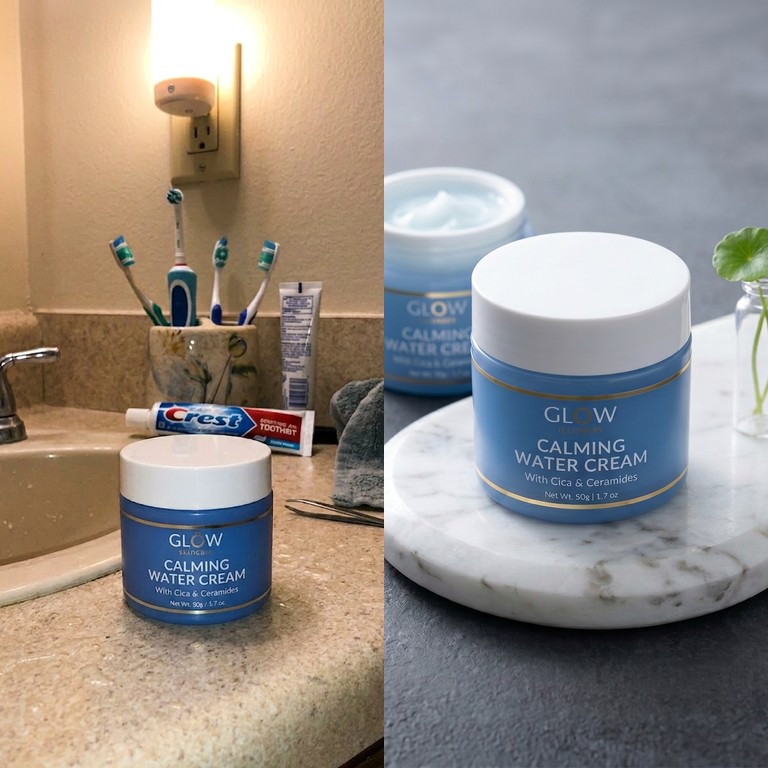
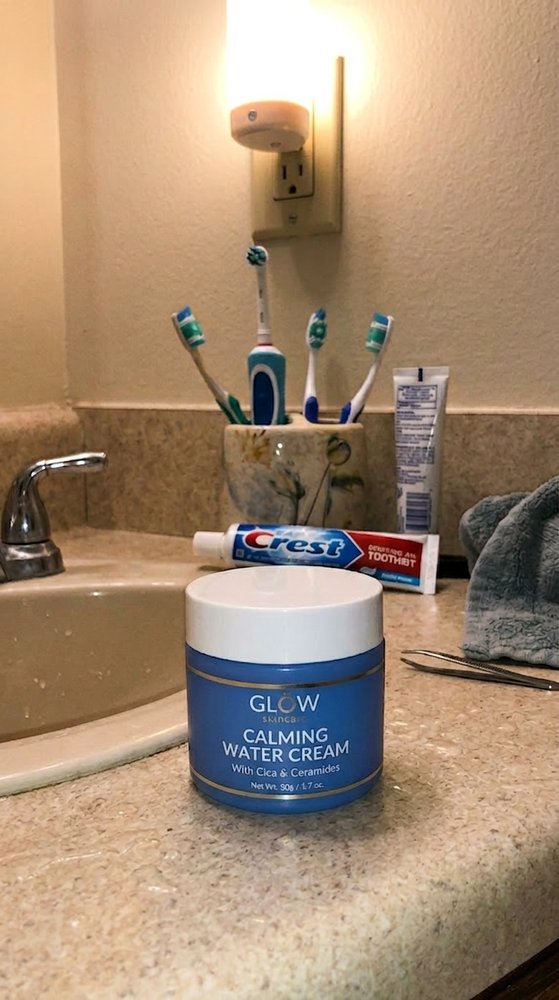
I started with a phone photo of a blue jar of Glow Skincare Calming Water Cream. The product itself is readable and centered, but the scene around it is not store-ready. There are toothbrushes, toothpaste, a towel, tweezers, a sink, a wall outlet, and warm bathroom lighting.
For the final skincare marketing image, I used these Marketing Image settings:
- Include People: No
- Style: Luxury / Premium
- Aspect Ratio: Product Card (3:4)
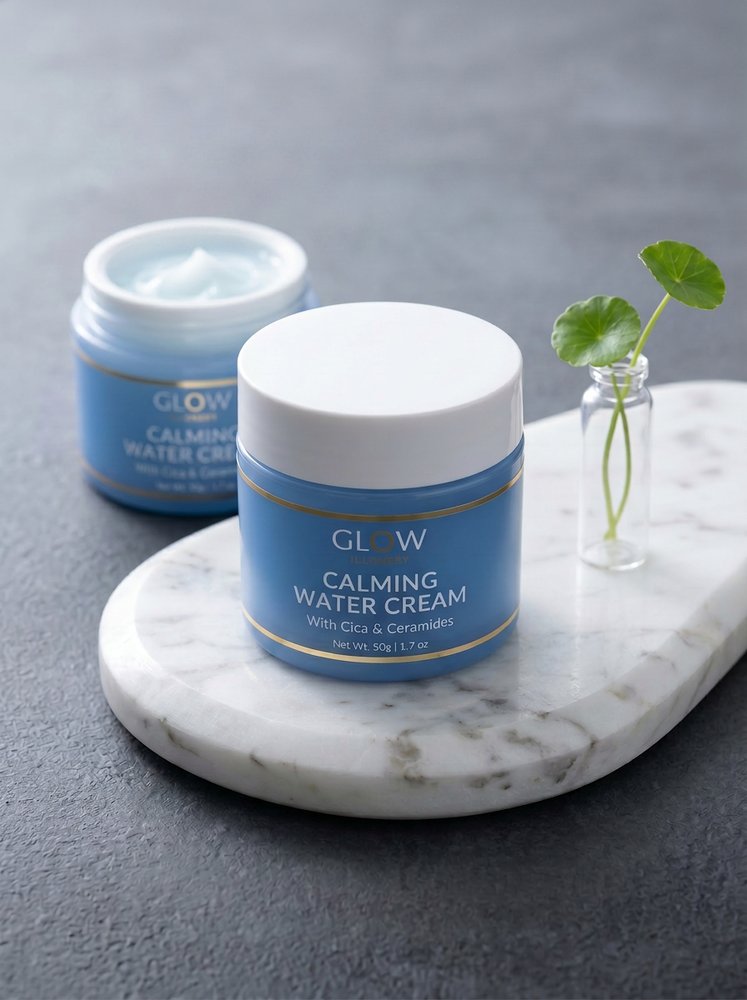
The result keeps the same blue jar and label direction, then stages it on a white marble tray with a second jar in the background, a small botanical prop, soft shadows, and a cool premium surface.
Bathroom counter photo
Premium Shopify product card
What changed in the final image
The biggest win is focus. In the original, your eye has to filter out the sink, toothbrushes, outlet, towel, and toothpaste tube before it lands on the jar. In the final image, the product owns the frame.
The second win is perceived value. Marble, soft shadows, cool gray texture, and a small green botanical cue all say “skincare” without turning the scene into a busy spa flat lay. The result feels premium, but not overdecorated.
The third win is consistency. Once you have a product-card style that fits your Shopify store, you can run the same product again in other looks:
- Luxury / Premium for launch pages and hero product cards
- Clean Studio for a tighter catalog-style image
- Nature / Botanical for ingredient-led campaigns
- Magazine Editorial for social or email creative
That gives you more than one usable image from the same source photo.
Input photo tips for skincare jars, tubes, and bottles
You do not need a perfect studio shot before using ImageFix, but the input photo still matters.
Keep the label facing the camera. AI can improve the scene, but it still needs a good read on the product. Turn the jar or bottle until the front label is centered.
Avoid heavy glare. Glossy skincare packaging can catch bathroom lights and window reflections. Move the product slightly or turn off harsh overhead lighting if the label is blown out.
Get the product in focus. The background can be messy. The product should not be blurry.
Leave the whole product visible. Do not crop off the cap, tube end, pump, or bottom edge unless that is intentional.
Shoot one clean reference for each SKU. If your collection has different scents, colors, or labels, photograph each product separately so the generated Shopify product photos stay accurate.
When to use Luxury / Premium versus Clean Studio
For skincare, I like Luxury / Premium when the product needs to feel elevated: moisturizers, facial oils, serums, night creams, and spa-adjacent products. It is good for product pages, homepage sections, email banners, and launch graphics.
Clean Studio is better when the store needs a quieter catalog feel. If you want every product card to look consistent across a collection page, run a second version in Clean Studio and compare it against the premium version.
The useful part is that you do not have to decide once. Upload the same product photo, rerun the Marketing Image blueprint with a different style or aspect ratio, and build a small set of images for different channels.
Step-by-step: Create skincare product photos for Shopify
Here is the exact workflow I used to turn the bathroom-counter photo into a premium skincare product image.
Step 1: Upload your skincare product photo
- Log into ImageFix.
- Upload the product photo you want to improve.
- Open the image in the editor after it finishes uploading.
For this example, I used a phone photo of a blue water cream jar on a bathroom counter. The jar is clear enough to identify, but the background is doing the product no favors.
Step 2: Select the Marketing Image blueprint
- In the left sidebar, choose Marketing Image.
- Check that the product photo is selected on the canvas.
- Look at the options panel on the right side of the editor.
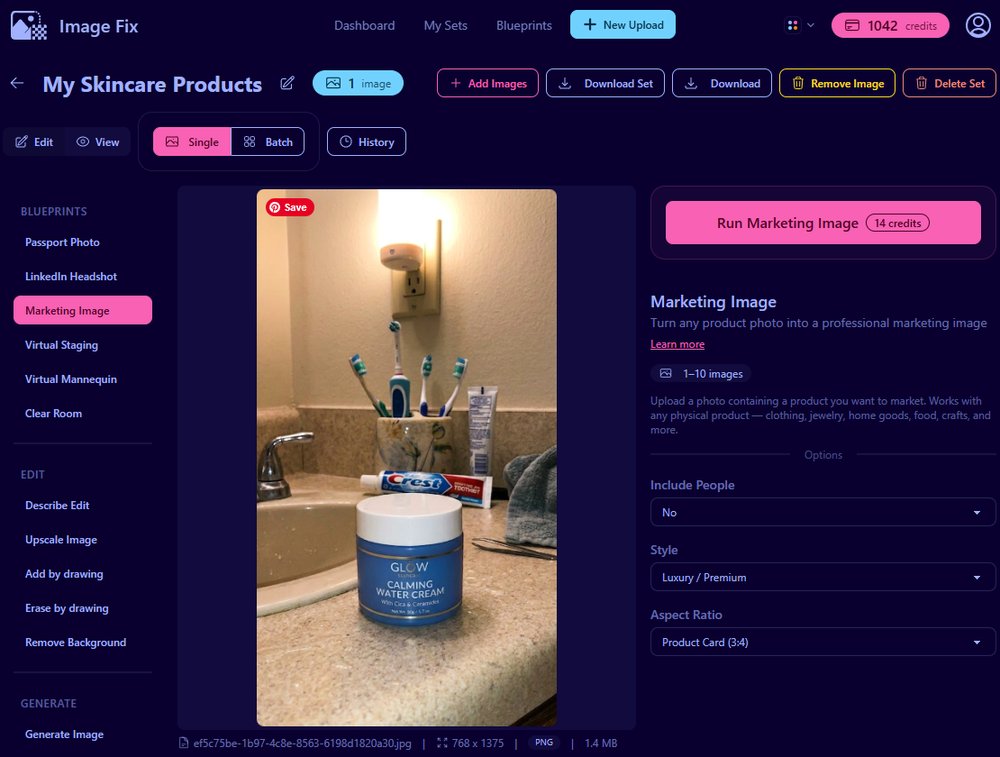
The Marketing Image blueprint is built for physical products: skincare, candles, jewelry, food packaging, handmade goods, apparel, and similar ecommerce items.
Step 3: Set Include People to No
- Find the Include People dropdown.
- Choose No for a product-only skincare image.
- Use Yes only when a person is already part of the product photo and you want them kept in the scene.
This example is just the jar, so No is the right choice. That keeps the result focused on the product, not a model or hand shot.
Step 4: Choose Luxury / Premium
- Open the Style dropdown.
- Select Luxury / Premium.
- Use this style when you want a clean, elevated beauty-brand look.
Luxury / Premium works well for moisturizers, serums, oils, masks, and anything where packaging quality matters. For this jar, it created a marble tray, soft botanical styling, and calmer lighting.
Step 5: Choose Product Card 3:4
- Open the Aspect Ratio dropdown.
- Select Product Card (3:4).
- Use this when you want a tall ecommerce-friendly product image.
A 3:4 crop gives the jar more vertical room than a square image. It also leaves space around the product, which helps the final image feel less cramped.
Step 6: Run the blueprint
- Click Run Marketing Image.
- Wait for ImageFix to generate the new image.
- Review the result on the canvas.
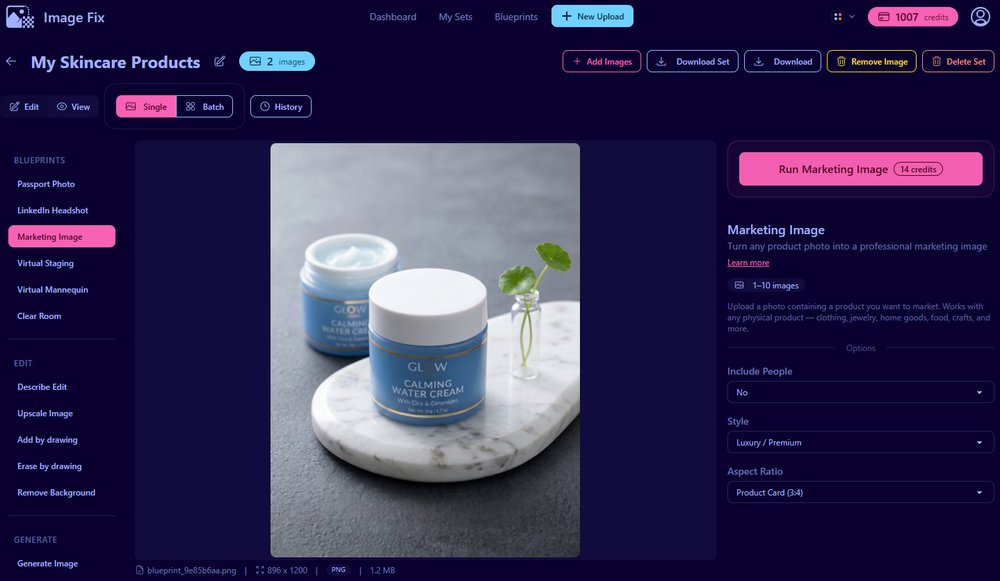
The final image keeps the same blue skincare jar, removes the bathroom-counter distractions, and places the product in a premium composition that feels much more appropriate for a Shopify product card.
Tips for better skincare product photos
Shoot the product straight-on first. Angled shots can look nice, but a straight, readable label gives the AI a stronger product reference.
Clean the container before photographing it. Fingerprints, dust, and cream residue can show up on glossy jars and pumps.
Use a second pass for catalog consistency. After you create the premium version, run the same photo again with Clean Studio if you want a quieter collection-page image.
Keep testing aspect ratios. Product Card 3:4 worked well here, but Square 1:1 and Instagram Post 4:5 can be useful for different placements.
Why ImageFix
- It starts from your real product. You do not need to prompt a fake jar from scratch.
- The options are simple. Pick people, style, and aspect ratio, then run the blueprint.
- It fits seller workflows. You can create skincare marketing images for product cards, launch posts, emails, and social posts from the same source photo.
Ready to upgrade your skincare product photos?
Try the Marketing Image blueprint with one of your own product photos, or create a free ImageFix account and get 50 free credits to test it on a few skincare images.